The Best Windows Dig Equivalent for DNS Queries

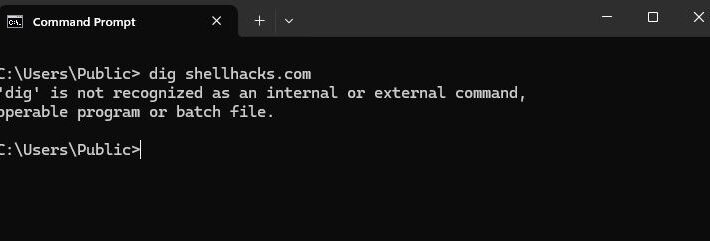
Windows Command Prompt returns the error: "'dig' is not recognized as an internal or external command, operable program or batch file"

The dig command is an essential DNS troubleshooting tool on Linux and macOS. However, attempting to use it in a Windows Command Prompt or PowerShell will return the errors as follows:

‘dig’ is not recognized as an internal or external command, operable program or batch file.

dig : The term ‘dig’ is not recognized as the name of a cmdlet, function, script file, or operable program. Check the spelling of the name, or if a path was included, verify that the path is correct and try again.

The Windows dig equivalent are the Resolve-DnsName command in PowerShell and the nslookup command in Command Prompt.

Below is a quick guide on how to use these commands to check DNS records in Windows. (more…)

Dig Without Cache

dig can return cached responses because it caches the results of previous queries to improve performance.

For the same reason the cache responses can come from the configured name servers.

This is useful when you are querying the same domain multiple times, but it can be problematic when you need to check if a change you made to a DNS record has propagated.

Luckily, the dig command can be forced to resolve without using cache and this post demonstrates how to do this. (more…)

Nslookup: Specify DNS Server – Windows, Linux & macOS

The nslookup (Name Server Lookup) – is a command-line tool for querying DNS (Domain Name System) servers, that is usually can be found on Windows, Linux and macOS systems out of the box.

This tool is used for resolving domain names, IP addresses and other specific DNS records.

By default, the nslookup command is using a DNS server configured locally, e.g. a DNS server provided by an ISP (Internet Service Provider).

Though with the nslookup you can change the default DNS server and query a specific one.

This short note shows how to specify the DNS server with the nslookup command. (more…)

IP2Host: Get Hostname from IP – Command Line

A reverse name resolution zone file is used to translate an IP address in a particular namespace into a fully qualified domain name (FQDN).

If this file has been configured on a name server, it becomes possible to find a hostname from an IP address.

This note shows how to get a hostname from an IP address from the command line in Windows, Linux or MacOS using the nslookup command.

Cool Tip: How to setup a reverse name resolution! Read more →

Find Hostname from IP

Execute the nslookup command as follows from a terminal in Linux/MacOS or from a command prompt (CMD or PowerShell) in Windows to find the hostname by IP:

$ nslookup 192.168.0.15
- sample output -
Server:  router.net.infra
Address: 192.168.0.1

Name:    my-box-hostname.net.infra
Address: 192.168.0.15

The command above performs the reverse lookup and converts the IP address to hostname by querying the name server for the 15.0.168.192.in-addr.arpa record.

Encrypt DNS Traffic With DNSCrypt

This tutorial describes how to install and set up DNSCrypt on Debian based systems, like Linux Mint, Ubuntu etc.

DNSCrypt Proxy – is a tool for securing communications between a client and a DNS resolver.

It encrypts DNS requests using the DNSCrypt Protocol and pass them to an upstream server, by default OpenDNS.

Resolving dependencies

Install the packages necessary to compile DNSCrypt.

$ sudo apt-get install build-essential

Download and extract the latest libsodium library:

$ wget http://download.libsodium.org/libsodium/releases/libsodium-0.4.2.tar.gz  -O - | tar -xz

Install the library:

$ cd libsodium-0.4.2/
$ ./configure && make
$ sudo make install
$ sudo ldconfig
$ cd ..
$ rm -rf libsodium*

DNSCrypt Proxy Installation

Download and extract the latest DNSCrypt Proxy:

$ wget http://download.dnscrypt.org/dnscrypt-proxy/dnscrypt-proxy-1.3.3.tar.gz  -O - | tar -xz

Install the DNSCrypt Proxy:

$ cd dnscrypt-proxy-1.3.3/
$ ./configure  && make
$ sudo make install
$ cd ..
$ rm -rf dnscrypt-proxy*

Run the following command to start DNSCrypt:

$ sudo /usr/local/sbin/dnscrypt-proxy --daemonize --pidfile=/run/dnscrypt-proxy.pid --edns-payload-size=4096

Reconfigure Network Manager to use DNSCrypt:

  • Open Network Connections from the menu.
  • On the Wired or Wireless tab highlight your active Internet connection.
  • Click “Edit”.
  • On the IPv4 Settings tab, set Method to “Automatic (DHCP) addresses only” and set DNS servers to “127.0.0.1”.
  • Click “Save”.
  • Click “Close”.

Restart Network Manager:

$ sudo restart network-manager

Final Test

Visit http://www.opendns.com/welcome page to test your connection.

You should be welcomed to OpenDNS.

Run DNSCrypt Proxy at System Startup

Once everything works as expected, it is necessary to include dnscrypt-proxy to our rc.local to run automatically whenever the system boots.

To do this open the /etc/rc.local file:

$ sudo vi /etc/rc.local

Paste the following line before the line where exit 0 appears.

exec /usr/local/sbin/dnscrypt-proxy --daemonize --pidfile=/run/dnscrypt-proxy.pid --edns-payload-size=4096

More info about DNSCrypt
Setting Up DNS Records — [CNAME] Record (canonical name record)

What is a [CNAME] Record?

A [CNAME] Record or a Canonical Name Record, specifies that the domain name or subdomain is an alias of another, canonical domain name.

The value of a CNAME record is always a domain name.

What does the [CNAME] Record serve for?

[CNAME] Records are useful because they allow you to set up an alias to a server without using its IP address.

For example, www.example.com can have a [CNAME] Record pointing to example.com.

This way when you type in your browser www.example.com, you are actually redirected to CNAMEexample.com.

How to check a [CNAME] Record?

Use the dig command, to check [CNAME] Record:

$ dig CNAME www.example.com +short
example.com.

Adding [CNAME] Record to DNS — Examples

Use the following syntax to add a [CNAME] Record to a Zone File.

Create an Alias for [WWW] with [CNAME] Record

www.example.com. IN CNAME example.com.

Create Multiply Aliases with [CNAME] Records

example.com. IN CNAME example.tld.
www.example.com. IN CNAME example.tld.
test.example.com. IN CNAME example.tld.

Setting Up DNS Records — [A] Record (address record)

What is an [A] Record?

An [A] Record or an Address Record, assigns an IP address to a domain or subdomain name.

The value of an A record is always an IP address.

How to check an [A] Record?

Use the dig command, to check which IP address is assigned to the domain name.

$ dig A centos.org +short
72.232.194.162
$ dig A wiki.centos.org +short
72.232.194.162

Adding [A] Record to DNS — Examples

Use the following syntax to add an [A] Record to a Zone File.

[A] Record for Domain

The following example indicates that the IP Address for the domain example.com is 192.168.0.100:

example.com. IN A 192.168.0.100

[A] Record for SubDomain

The following example indicates that the IP Address for the subdomain www.example.com is 192.168.0.100:

www.example.com. IN A 192.168.0.100

Wildcard [A] Record

The following example indicates that the IP Address for any subdomain of the domain example.com is 192.168.0.100:

*.example.com. IN A 192.168.0.100

Setup DNS Resolution With “resolv.conf” in Examples

The /etc/resolv.conf configuration file contains information that allows a computer to convert alpha-numeric domain names into the numeric IP addresses.

The process of converting domain names to IP addresses is called resolving.

When using DHCP, dhclient usually rewrites resolv.conf with information received from the DHCP server.

How do I edit the “/etc/resolv.conf” file?

Use text editor such as vi or gedit from Linux desktop:

# vi /etc/resolv.conf

There are three main configuration directives in /etc/resolv.conf:

nameserver # DNS server IP
domain # Domain Name of local host
search # Which Domain to search

The “nameserver” directive

The nameserver directive points out to the IP address of a Name Server.

nameserver <IP address>

It can be your own Name Server, some public Name Server or the Name Server of your’s ISP.

Note: Up to 3 name servers may be listed.

Example:

nameserver 192.168.0.100
nameserver 8.8.8.8
nameserver 8.8.4.4

The “domain” directive

Local domain name.

domain <local domain name>

Example:

domain domain.com
nameserver 192.168.0.100
nameserver 8.8.4.4

How the “domain” directive in the “resolv.conf” file works?

You can use domain directive for resolving short host-names – e.g. test.
So if you have the following in your /etc/resolv.conf:

domain example.com

Then your computer will try to resolve test.example.com.

The “search” directive

Search list for hostname lookup. The search list is normally determined from the local domain name but it can be set to a list of domains.

search <search list>

Example:

search example.com company.net
nameserver 192.168.0.100
nameserver 8.8.8.8

How the “search” directive in the “resolv.conf” file works?

You need to use search directive for resolving short host-names – e.g. test.
So if you have the following in your /etc/resolv.conf:

search example.com company.net

Then your computer will try to resolve test.example.com followed by test.company.net. It will return the first query that was successful.

Setting Up Reverse DNS — PTR Record

What is the reverse DNS?

Reverse DNS is an IP address to domain name mapping – the opposite of Forward DNS which maps domain names to IP addresses.

Comparison:

## FORWARD LOOKUP ##

# host centos.org
centos.org has address 72.232.194.162

## REVERSE LOOKUP ##

# host 72.232.194.162
162.194.232.72.in-addr.arpa domain name pointer www.centos.org.

What does the Reverse DNS serve for?

The Reverse DNS is one of the basic requirements for running some Internet protocols. It is also often used as a spam filter to determine whether the IP address of the incoming message matches an authenticated domain name and to block the message if it doesn’t.

Who controls the reverse DNS?

Reverse DNS is controlled by the owner of the IP address (probably your SIP).

How to check the reverse DNS?

Using one of the following commands, you can get the reverse DNS.

Using the ‘host’ command:

# host 72.232.194.162
162.194.232.72.in-addr.arpa domain name pointer www.centos.org.

Using the ‘nslookup’ command:

# nslookup 208.80.152.201
162.194.232.72.in-addr.arpa     name = www.centos.org.

Using the ‘dig’ command:

# dig -x 208.80.152.201
162.194.232.72.in-addr.arpa. 859 IN     PTR     www.centos.org.

Configuring the reverse DNS

Lets setup PTR record for the IP address ‘192.168.0.5’. It should be pointed to ‘your.site.name’.

Add the new zone to the ‘named.conf’ file as follows:

zone "0.168.192.in-addr.arpa" {
type master;
file "/var/named/0.168.192.in-addr.arpa";
};

Create the zone file ‘/var/named/0.168.192.in-addr.arpa’, and add the the following content:

$TTL 3600
@          IN SOA ns0.name.server. root.ns0.name.server. (
              2012020801       ; Serial
              21600             ; refresh
              3600              ; retry
              3600000           ; expire
              86400 )           ; minimum

           IN  NS ns0.name.server.
           IN  NS ns1.name.server.

; ----------- ENREGISTREMENTS -----------
$ORIGIN 0.168.192.in-addr.arpa.
5                      IN PTR                  your.site.name.
; ----------- ENREGISTREMENTS SPECIAUX -----------

Where ‘ns0.name.server’ and ‘ns1.name.server’ are your DNS servers.

Save the changes and reconfig ‘named’:

# rndc reconfig

Check the PTR:

# dig -x  192.168.0.5 @ns0.name.server +short
your.site.name.