LG webOS TV is perfectly integrated with the standard Home Assistant’s media player.
However, since some update you may not be able to turn on your LG webOS TV.
Luckily, this issue can easily be solved using vanilla Home Assistant (HA) and Wake on LAN (WoL) integration.
Cool Tip: How to edit Home Assistant’s configuration.yaml file! Read more →
Enable LG webOS TV ‘Turn On’ in HA’s Media Player
If the LG webOS Smart TV integration hasn’t been auto-discovered by your Home Assistant, you can add it by following this link.
The main thing is that Home Assistant and LG webOS TV must be on the same network.
As you can see on the screenshot below, after some update the LG webOS TV’s Turn On media player button has disappeared:

Don’t worry! Follow this guide and you will recover it easily:

First of all, go to your LG TV’s Settings → All settings → Network and make sure that LG Connect Apps feature is turned ON.
To enable the LG webOS TV’s WoL feature, go to Settings → All settings → General → Mobile TV On and enable Turn on via Wi-Fi.
Once WoL is enabled, the LG webOS TV can be awakened by sending a Magic Packet (broadcast sent on port 0, 7 or 9 that contains the device’s MAC address).
Now, open your Home Assistant’s configuration.yaml file and enable the WoL integration by adding:
# Enable "Wake on LAN" integration
wake_on_lan:
After enabling the WoL feature, restart your Home Assistant for changes to take effect.
To restart Home Assistant, go to Developer Tools → YAML tab → Check and restart section and click on RESTART.
Now, go to your Home Assistant’s Settings → Automations & scenes and in Automations tab, click on ➕ CREATE AUTOMATION.
As a trigger, select Device is requested to turn on and your LG webOS TV:

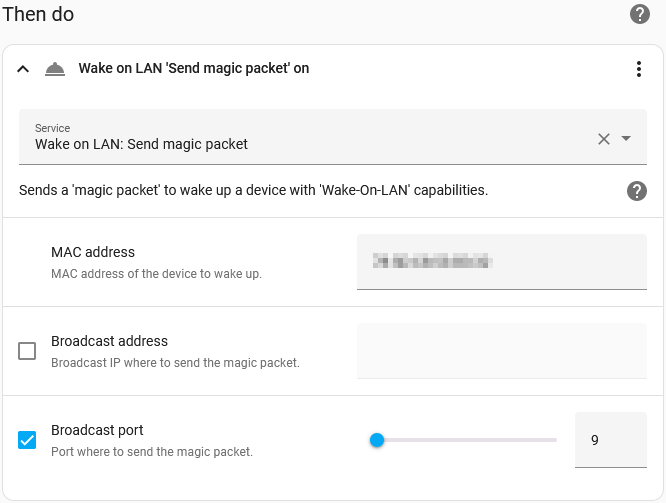
As an action, select Wake on LAN: Send magic packet and enter you LG webOS TV’s MAC address:
Optionally, you can also add some custom actions once your LG webOS TV is turned on.
For example, you can change input source to YouTube:

Finally, click on SAVE.
The Turn On media player button should appear and now you should be able to power on your LG webOS TV using Home Assistant.
Awesome, thanks!
work perfect TY!!!!