While most of Home Assistant settings can be configured through the user interface (UI), there are still some things that require direct editing of the configuration.yaml file.
For example, to enable a “Wake on LAN” feature it is required to add wake_on_lan: to the configuration.yaml file and restart Home Assistant.
In this post you will find the three most easiest ways to edit the Home Assistant’s configuration.yaml file.
Cool Tip: How to SSH into Home Assistant! Read more →
Edit Home Assistant `configuration.yaml` File
1. Visual Studio Code Add-on
One of the easiest ways to edit the configuration.yaml file is by installing the Visual Studio Code add-on that can be embedded straight into the Home Assistant UI.
This add-on allows to edit your Home Assistant configuration straight from the web browser.
It provides live syntax checking and auto-fill of various Home Assistant entities.
To install the Visual Studio Code add-on, go to Settings → Add-ons → ADD-ON STORE, search for Studio Code Server and click on INSTALL.
Once the Visual Studio Code add-on is installed, toggle the Show in sidebar switch to add it to the Home Assistant sidebar.

2. File Editor Add-on
Another easy way to edit the Home Assistant’s configuration.yaml file is by installing the File editor add-on.
To install the File Editor add-on, go to Settings → Add-ons → ADD-ON STORE, search for File Editor and click on INSTALL.
Once the File Editor add-on is installed, toggle the Show in sidebar switch to add it to the Home Assistant sidebar.

3. Samba Add-on
And finally the third popular way to edit the configuration.yaml file is by using the Samba add-on that allows to access Home Assistant files as a network share.
To install the Samba add-on, go to Settings → Add-ons → ADD-ON STORE, search for Samba share and click on INSTALL.
Open Configuration tab and set credentials:
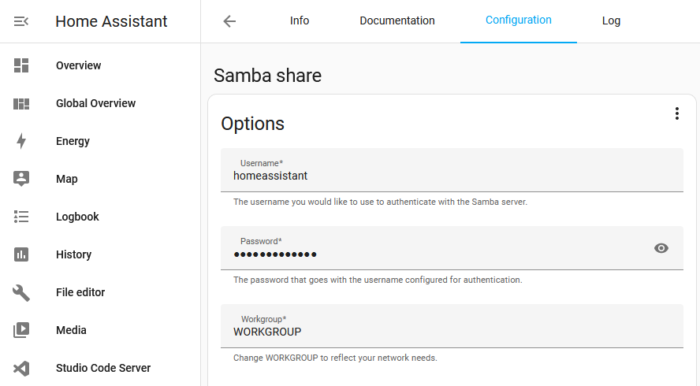
Then go back to Info tab and click on START.
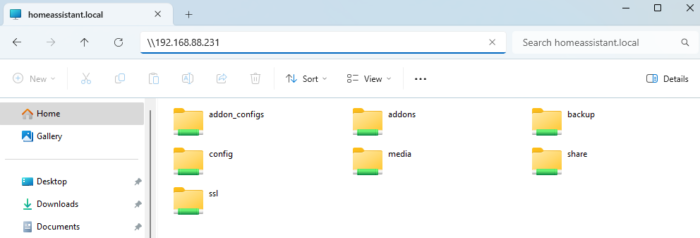
To access Home Assistant files from your computer, enter the IP address or hostname of Home Assistant in File Explorer’s address bar with two backslashes, as shown in the example below:
Reload `configuration.yaml`
To reload changes made in configuration.yaml, go to Developer Tools → YAML tab → YAML configuration reloading section and click on ALL YAML CONFIGURATION.
In some ceases you will need to restart Home Assistant for changes to take effect.
To restart Home Assistant, go to Developer Tools → YAML tab → Check and restart section and click on RESTART.