MikroTik routers support many VPN services, including NordVPN.
Starting from RouterOS v6.45, it is possible to establish IKEv2 secured tunnel to NordVPN servers using EAP authentication.
Learn how to set up NordVPN on your MikroTik router for enhanced privacy and security.
Follow these simple steps to safeguard your network traffic and enjoy seamless protection.
🔒 Unlock the Internet with NordVPN! Are you ready to experience the web without borders? Use my referral link to sign up for NordVPN, and you’ll get up to 3 free months of premium VPN service.
MikroTik NordVPN Setup
Download and import the NordVPN root CA certificate:
[admin@MikroTik] > /tool fetch url="https://downloads.nordvpn.com/certificates/root.der"
[admin@MikroTik] > /certificate import file-name=root.der
Create an IPsec profile and configure a proposal:
[admin@MikroTik] > /ip ipsec profile add name=NordVPN
[admin@MikroTik] > /ip ipsec proposal add name=NordVPN pfs-group=none
Create a new policy group and a template:
[admin@MikroTik] > /ip ipsec policy group add name=NordVPN
[admin@MikroTik] > /ip ipsec policy add dst-address=0.0.0.0/0 \
                                        group=NordVPN \
                                        proposal=NordVPN \
                                        src-address=0.0.0.0/0 \
                                        template=yes
Create a new mode-config entry with responder=no, to request configuration parameters from the NordVPN server:
[admin@MikroTik] > /ip ipsec mode-config add name=NordVPN responder=no
Visit the NordVPN Servers page and find out the server recommended by NordVPN:
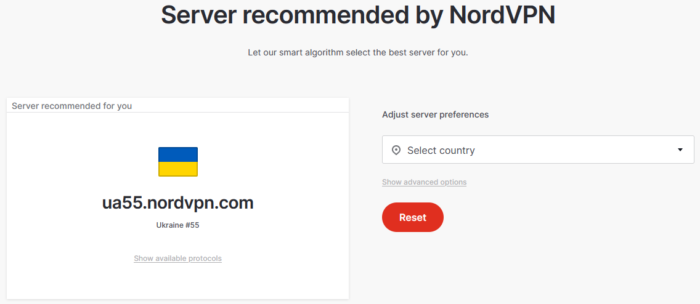
In this example, the recommended server’s hostname is ua55.nordvpn.com.
Create a peer configuration:
[admin@MikroTik] > /ip ipsec peer add address=ua55.nordvpn.com \
                                      exchange-mode=ike2 \
                                      name=NordVPN \
                                      profile=NordVPN
While setting up NordVPN on MikroTik, it is required to specify the NordVPN service credentials (service username and service password).
To find them out, open the Nord Account dashboard and click on Set up your NordVPN manually:

You will receive a verification code by email. Type it in:

Copy the credentials:

Create an identity configuration by specifying your NordVPN service credentials in username and password parameters:
[admin@MikroTik] > /ip ipsec identity add auth-method=eap \
                                          certificate="" \
                                          eap-methods=eap-mschapv2 \
                                          generate-policy=port-strict \
                                          mode-config=NordVPN \
                                          peer=NordVPN \
                                          policy-template-group=NordVPN \
                                          username=<service_username> \
                                          password=<service_password>
To verify that the connection between your MikroTik router and NordVPN is successfully established, execute:
[admin@MikroTik] > /ip ipsec active-peers print
- sample output -
Flags: R - RESPONDER; N - NATT-PEER
Columns: ID, STATE, UPTIME, PH2-TOTAL, REMOTE-ADDRESS
#    ID                STATE        UPTIME       PH2-TOTAL  REMOTE-ADDRESS
0 RN ua55.nordvpn.com  established  1d15h48m40s          1  37.19.218.155

[admin@MikroTik] > /ip ipsec installed-sa print
- sample output -
Flags: H - HW-AEAD; E - ESP
Columns: SPI, STATE, SRC-ADDRESS, DST-ADDRESS, AUTH-ALGORITHM, ENC-ALGORITHM, ENC-KEY-SIZE
#    SPI         STATE   SRC-ADDRESS          DST-ADDRESS          AUTH-ALGORITHM  ENC-ALGORITHM
0 HE 0x5980D03   mature  37.19.218.155:4500   192.168.1.1:4500     sha1            aes-cbc
1 HE 0xCEEA27DF  mature  192.168.1.1:4500     37.19.218.155:4500   sha1            aes-cbc
Choose what to send over the tunnel
Once the VPN tunnel between MikroTik and NordVPN is configured, it’s required to decide which traffic should go through this tunnel.
Option 1️⃣ – Sending all traffic over the tunnel
Suppose we have a local network, e.g. 192.168.88.0/24, behind the router and we want all traffic from this network to use the VPN tunnel.
Create an address list containing our local network:
[admin@MikroTik] > /ip firewall address-list add address=192.168.88.0/24 list=nordvpn-src
It is also possible to specify only certain hosts from which all traffic will be sent over the tunnel, for example:
[admin@MikroTik] > /ip firewall address-list add address=192.168.88.110 list=nordvpn-src
[admin@MikroTik] > /ip firewall address-list add address=192.168.88.15 list=nordvpn-src
Assign this address list to the mode-config configuration:
[admin@MikroTik] > /ip ipsec mode-config set [ find name=NordVPN ] src-address-list=nordvpn-src
Verify that the correct source NAT rule is dynamically generated when the tunnel is established:
[admin@MikroTik] > /ip firewall nat print
- sample output -
Flags: X - disabled, I - invalid; D - dynamic
 0  D ;;; ipsec mode-config
      chain=srcnat action=src-nat to-addresses=10.6.0.28 src-address-list=nordvpn-src dst-address-list=!nordvpn-src
Option 2️⃣ – Accessing specific addresses over the tunnel
If we want to access only certain resources through the tunnel, we can use the connection-mark parameter in the Mangle firewall.
Set the connection-mark under your mode-config configuration:
[admin@MikroTik] > /ip ipsec mode-config set [ find name=NordVPN ] connection-mark=NordVPN
When it is done, a NAT rule is generated with the dynamic address provided by the NordVPN server:
[admin@MikroTik] > /ip firewall nat print
- sample output -
Flags: X - disabled, I - invalid, D - dynamic
0  D ;;; ipsec mode-config
    chain=srcnat action=src-nat to-addresses=10.6.0.28 connection-mark=NordVPN
After that, it is possible to apply this connection-mark to any traffic using Mangle firewall.
For example, access to shellhacks.com and 8.8.8.8 over the tunnel – create an address list as follows:
[admin@MikroTik] > /ip firewall address-list add address=shellhacks.com list=nordvpn-dst
[admin@MikroTik] > /ip firewall address-list add address=8.8.8.8 list=nordvpn-dst
Apply connection-mark to traffic matching the created address list:
[admin@MikroTik] > /ip firewall mangle add action=mark-connection
                                           chain=prerouting \
                                           dst-address-list=nordvpn-dst \
                                           new-connection-mark=NordVPN \
                                           passthrough=yes
These instructions are based on a tutorial written by MikroTik. You can find the original article here.
Also need to change MSS
/ip firewall mangle add action=change-mss chain=forward new-mss=1360 passthrough=yes protocol=tcp connection-mark=NordVPN tcp-flags=syn tcp-mss=!0-1360
or
/ip firewall mangle add action=change-mss chain=forward new-mss=clamp-to-pmtu passthrough=yes \ protocol=tcp connection-mark=NordVPN tcp-flags=syn
This is a very interesting article! Thanks for sharing.