More and more smart devices with an Internet connectivity are appearing in our homes.
If you don’t want your smart socket, robot vacuum cleaner or IP camera to leak your personal data, you can block these devices from accessing the Internet by their IP/MAC addresses.
In this post I will show you how to block an Internet access by IP/MAC using a MikroTik router.
Cool Tip: Show devices connected to a MikroTik router! Read more →
Block Internet Access by IP/MAC on MikroTik
Set a Static IP Address
First of all, make sure that the device for which you want to block the Internet access has a static IP address.
If it receives an IP address from a MikroTik’s DHCP server, open Winbox/Winfig, go to “IP” → “DHCP Server”, select the “Leases” tab, find your device by IP or MAC, double-click on it and click on the “Make Static” button:

Through the CLI this can be done as follows:
[admin@MikroTik] > /ip dhcp-server lease print
[admin@MikroTik] > /ip dhcp-server lease make-static numbers=<lineNumber>
Cool Tip: Set a static IP address for a MikroTik’s DHCP client! Read more →
Create a List of IP Addresses to Block
Create a list of IP addresses of devices for which you want to block the Internet access.
For this, open Winbox/Winfig, go to “IP” → “Firewall”, select the “Address Lists” tab, click on ➕ “Add” and create a “no-internet” IP address list with the IP address of your device:
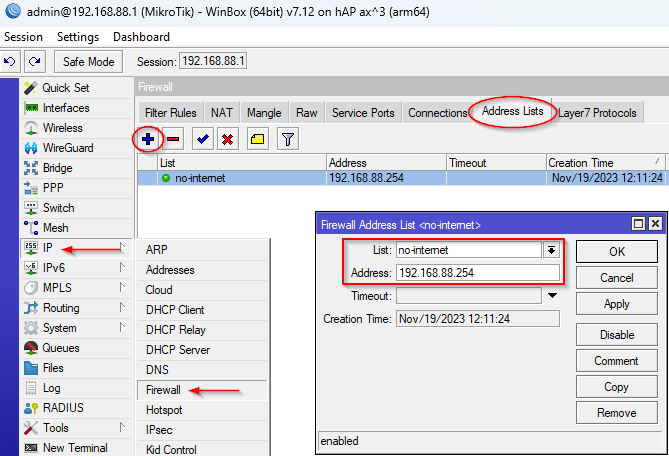
The same way you can add multiple IP addresses to the “no-internet” IP address list and they all will be blocked by a single firewall rule that will be created in the next step.
Through the CLI this can be done, for example, as follows:
[admin@MikroTik] > /ip firewall address-list add address=192.168.88.254 \
                                                 list="no-internet" \
                                                 comment="Vacuum"
[admin@MikroTik] > /ip firewall address-list add address=192.168.88.251 \
                                                 list="no-internet" \
                                                 comment="Webcam"
Cool Tip: A default MikroTik firewall config for dummies! Read more →
Block Internet Access by IP
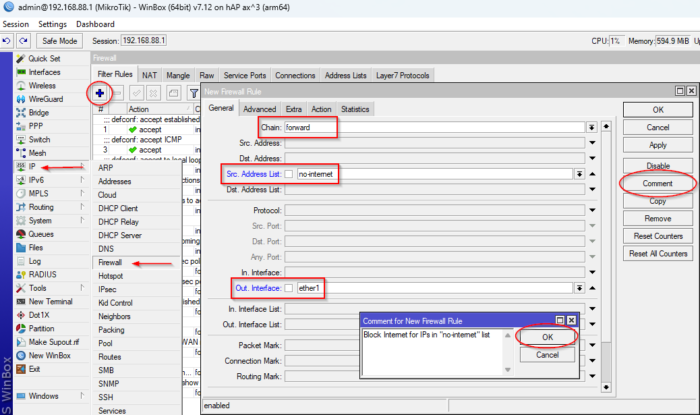
To block the Internet access for the devices which IP addresses are listed in “no-internet” list, go to “IP” → “Firewall”, click on ➕ “Add”, select “Chain: forward“, “Src. Address List: no-internet“, “Out. interface: ether1” (an interface connected to ISP) and optionally comment the rule:
Then open the “Action” tab, select “Action: drop” and click “OK”:
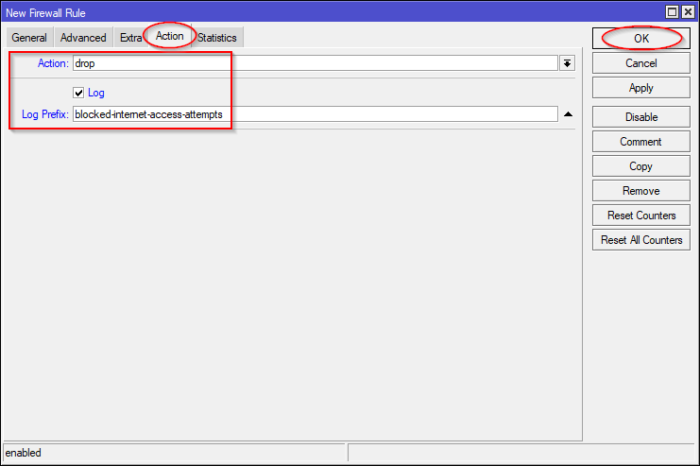
You can also optionally enable logging of the Internet access attempts as shown on the screenshot above.
Through the MikroTik’s CLI the Internet access can be blocked, as follows:
[admin@MikroTik] > /ip firewall filter add chain=forward \
                                           action=drop \
                                           src-address-list="no-internet" \
                                           out-interface=ether1 \
                                           comment="Block Internet access" \
                                           log=yes \
                                           log-prefix="blocked-internet-access-attempt"
Cool Tip: Minimize risks by using a MikroTik’s safe mode feature! Read more →
Show Blocked Internet Access Attempts
If you have enabled logging of the firewall rule, you can monitor the attempts of the devices to access resources outside the local network by going to 📄 “Log” menu in Winbox/Winfig or through the MikroTik’s CLI as follows:
[admin@MikroTik] > /log print follow where message~"blocked-internet-access-attempt"